

 Aurora Wandler

 Aurora(n)LM-DIGLM-PRE4LM-A4 / LM-A24LM-AIO8EDB-ADAT
 Hilo Wandler
Hilo2
Hilo Wandler
Hilo2 PCI Express Karten
Lynx E22Lynx E44Lynx AES16e
PCI Express Karten
Lynx E22Lynx E44Lynx AES16e Aurora/Hilo Interfaces
LT-HD2LT-USBLT-TB3LT-DANTE
Aurora/Hilo Interfaces
LT-HD2LT-USBLT-TB3LT-DANTE
 Zubehör
Lynx AudiokabelLynx Hilo Rack V2
Zubehör
Lynx AudiokabelLynx Hilo Rack V2Produktarchiv
ältere Lynx Produkte
 Was tun, wenn das gewünschte Lynx Produkt im Shop gerade auf "Rot" steht? Machen Sie's wie die anderen und kontaktieren Sie uns, so landen Sie direkt in unserem Bestellkreislauf, den wir ständig mit der hereinkommenden Ware abgleichen.
Video Galerie


 Lynx AES16 How do I install the Lynx AES16 card? | ||
| ||
Lynx AES16 How do I uninstall the Lynx AES16 card? | ||
| ||
Lynx AES16 How do I upgrade to a newer driver? | ||
| ||
Lynx AES16 What do I need to connect multiple cards to a system? | ||
| ||
Lynx AES16 What is firmware? | ||
| ||
Lynx AES16 When do I need to update my firmware? | ||
| ||
Lynx AES16 How do I update my firmware? | ||
| ||
Lynx AES16 What is the proper sequence of installing the card, firmware, and driver? | ||
| ||
Lynx AES16 Why am I unable to use the MME driver to record 24-bit audio in WaveLAB? | ||
| ||
Lynx AES16 Can I use the CBL-AES1603 connected to an Apogee DA-16(X) on one port of the AES16, and an 8-channel AD converter on the other port? | ||
| ||
Lynx AES16 I'm using two Lynx cards in Nuendo, and they appear with different names (i.e. Lynx AES16 record 1 left, and the other as Record 1 left). Is this normal? | ||
| ||
Lynx AES16 I'm using Sonar or Samplitude/Sequoia - what is the difference between using the ASIO, WDM or MME drivers? | ||
| ||
Lynx AES16 Do the Lynx cards support DTS or Dolby Digital through the Digital I/O? | ||
| ||
Lynx AES16 Can I use the AES16 with a computer that has PCI-X slots? | ||
| ||
Lynx AES16 What do I need to connect my Apogee AD-16(X) and DA-16(X) converters to the AES16? | ||
| ||
Lynx AES16 Is there a way to change the input level of audio coming into the AES16? | ||
| ||
Lynx AES16 How do I monitor audio coming in input 1 through output 1? | ||
| ||
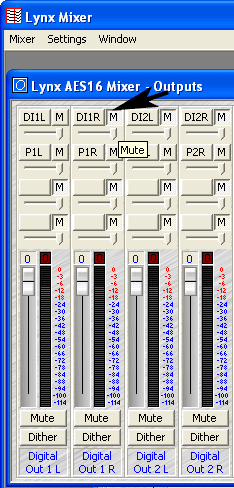
Lynx AES16 How can I use the Lynx Mixer's monitoring features to produce headphone mixes for recording artists? | ||
| ||


Lynx AES16 How can I monitor multiple input sources through a specific output? | ||
| ||
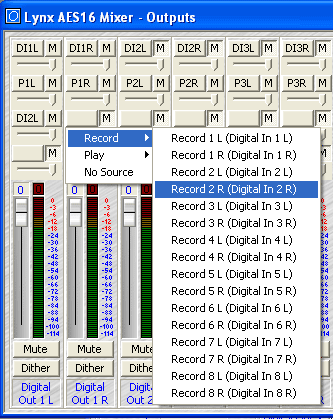
Lynx AES16 I'm inputting a mono source, but can only hear it out of one output channel. How can I hear the audio out of both speakers? | ||
| ||
Lynx AES16 My audio program will only let me specify a single ASIO or Core Audio device, how can I expand my I/O? | ||
| ||
Lynx AES16 Can I play audio out of one program and record it in another program without any physical cabling? | ||
| ||
Lynx AES16 What is the MIDI driver used for? | ||
| ||
Lynx AES16 SynchroLock takes a while before it locks to my clock source, is this normal? | ||
| ||
Lynx AES16 Can I change the sample rate of outgoing audio using the Sample Rate Converter on the card? (SRC version) | ||
| ||
Lynx AES16 Can I play one sample rate and record another at the same time? (SRC version) | ||
| ||
Lynx AES16 I have an external clock source for use with my AES16 card. Is it preferable to use the wordclock BNC connections or just supply clock via the AES/EBU digital connections? | ||
| ||
Lynx AES16 What is the difference between the AES16 and AES16-SRC | ||
| ||
Lynx AES16 I'm using the AES16 with the CBL-AES1603 cable (Apogee AD/DA16) or CBL-AES1605 (Yamaha, Apogee, Mackie), how do I get word clock in and out? | ||
| ||
Lynx AES16 How many AES16 cards can be installed in a single computer? | ||
| ||
Lynx AES16 How can I keep other users from changing my Lynx Mixer settings? | ||
| ||
Lynx AES16 What is Wide Wire mode, and do I need it to use for the higher sample rates? | ||
| ||
Lynx AES16 Can I use my Lynx card with two applications at the same time? | ||
| ||
Lynx AES16 This is supposed to be a 16-in/16-out card, but I only see 16 XLR connections. What gives? | ||
| ||
Lynx AES16 What is the maximum cable length that's been tested with the AES16? | ||
| ||
Lynx AES16 If I'm using a dual-wire A/D converter and a single-wire D/A converter, what impact would that have on the AES16's channel routing? | ||
| ||
Lynx AES16 Running an ASIO application and bit-depth says 32-bit in Lynx Mixer despite project bit-depth. | ||
| ||
Lynx AES16 I'm using the AES16 in Wide Wire mode, recording at 192KHz, but the Digital In Sample Rate reported in the Lynx is 96KHz - is this correct? | ||
| ||
Lynx AES16 The Lynx Mixer reports a sample rate of 22k when I first boot into Windows. Why? | ||
| ||
Lynx AES16 I cannot change the clock source in the Lynx Mixer - it keeps reverting back to the previous setting. | ||
| ||
Lynx AES16 I cannot change the clock source in the Lynx Mixer - it keeps reverting back to the previous setting | ||
| ||
Lynx AES16 My computer is not recognizing the Lynx card. What could be wrong? | ||
| ||
Lynx AES16 I installed your Version 2/ WDM drivers and now I'm not getting meter activity in my application. | ||
| ||
Lynx AES16 I get clicks and pops when I increase my sample rate to 96k. Is there a compatibility problem? | ||
| ||
Lynx AES16 When I log into my Windows 2000/XP computer as an Administrator everything works fine. When I log in as a User, I cannot use my AES16. When launching the Lynx Mixer, I get an error message: "No mixer device drivers available." | ||
| ||
Lynx AES16 My audio output is way too loud. | ||
| ||

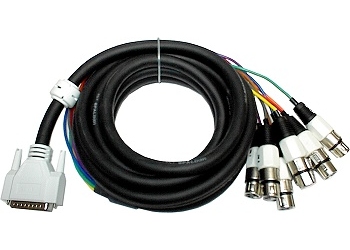 Was tun, wenn das gewünschte Lynx Produkt im Shop gerade auf "Rot" steht? Machen Sie's wie die anderen und kontaktieren Sie uns, so landen Sie direkt in unserem Bestellkreislauf, den wir ständig mit der hereinkommenden Ware abgleichen.
Video Galerie
Produktkatalog
Produktarchiv
SUPPORT
Treiber und Firmware Downloads
Dokumentation
Fragen und Antworten (FAQ)
Supportformular
Unser Online Shop
Autorisierte Fachhändler
KONTAKT
Kontaktadresse
Kontaktformular
Entsorgung von Altgeräten
Impressum
Datenschutzinformationen
Neuste Meldungen
Lynx Studio Produkte in der Presse
Folgen Sie uns
Neuigkeiten rund um Lynx Studio auf den Sozialen Medien

